

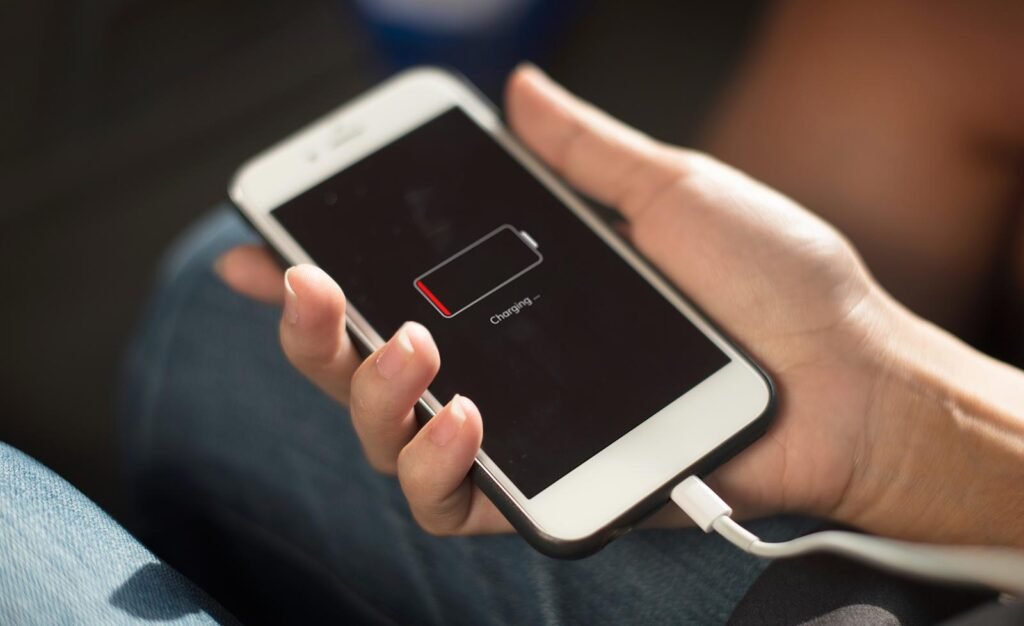
Nothing is more annoying than a phone that can’t make it through the day. Before you blame the battery itself, know this: in most cases, the culprit isn’t aging hardware — it’s a handful of apps misbehaving in the background. This guide shows you how to find those battery hogs and rein them in, on both Android and iPhone, without giving up the apps you love.
1. Find Out Which Apps Are Draining Your Battery
Don’t guess — your phone keeps detailed records of exactly what used power and when. A five-minute investigation usually reveals one or two apps responsible for most of the drain.
Check battery usage on Android
Go to Settings > Battery > Battery usage (on Samsung: Settings > Battery and device care > Battery, then tap the usage graph). You’ll see a list of apps ranked by consumption. Tap any app for details, including how much it used in the background versus on screen. An app you barely opened that sits near the top is your prime suspect.
Check battery usage on iPhone
Go to Settings > Battery and scroll to Battery Usage by App. Tap Show Activity to see background versus on-screen time. Also check Battery Health further down this screen: if Maximum Capacity is below 80%, the battery itself is worn and no settings tweak will fully fix it — consider a battery replacement.
2. Restrict Background Activity for the Worst Offenders
Apps don’t need to run constantly to be useful. Most can be told to sleep when you’re not using them, and you’ll barely notice the difference.
Android: restrict background battery use
Go to Settings > Apps, tap the offending app, then Battery (or App battery usage). Choose Restricted — Android will limit what the app can do in the background. On Samsung phones, you can also go to Settings > Battery and device care > Battery > Background usage limits and add apps to Deep sleeping or Sleeping apps. Messaging apps you rely on for instant notifications (like WhatsApp) should stay unrestricted; games and shopping apps are perfect candidates for restriction.
iPhone: turn off Background App Refresh
Go to Settings > General > Background App Refresh. You can turn it off entirely — the nuclear option that saves the most power — or toggle it off per app. Keep it on for messaging and navigation apps you depend on; turn it off for games, news, and social apps that don’t need to update until you open them.
3. Tame Location, Bluetooth, and Background Data
Location tracking is one of the hungriest background activities. Many apps request “always allow” location access when “only while using” would do fine.
Fix location permissions
On Android, go to Settings > Location > App location permissions and change apps set to “Allowed all the time” down to “Allowed only while in use” — unless it’s a navigation, fitness-tracking, or family-safety app that genuinely needs it. On iPhone, go to Settings > Privacy & Security > Location Services, tap each app, and choose While Using the App instead of Always. Also disable Precise Location for apps that don’t need your exact position.
Turn off radios you’re not using
Bluetooth, Wi-Fi scanning, and mobile hotspot all sip power even when idle. Swipe down your quick settings and turn off Bluetooth when no accessories are connected. On Android, also check Settings > Location > Location Services > Wi-Fi and Bluetooth scanning and turn both off — they let apps scan for networks even with Wi-Fi off. If you’re in an area with poor signal, consider Airplane Mode with Wi-Fi on: a phone straining to hold a weak cellular signal drains dramatically faster.
4. Reduce Notifications and Auto-Playing Content
Every notification wakes your screen, spins up the processor, and often triggers a vibration motor. Multiply that by dozens of apps and hundreds of daily pings, and it’s a real drain.
Silence the noisy apps
On Android, go to Settings > Notifications > App notifications and turn off notifications for games, shopping apps, and news apps. On iPhone, go to Settings > Notifications and do the same. Be ruthless — keep notifications only for people (calls, messages) and genuinely time-sensitive apps (banking alerts, ride apps).
Stop videos from auto-playing
Social apps that auto-play videos burn through battery (and data). In Instagram, there’s no full off switch, but using it less helps; in Facebook, go to Settings > Media > Autoplay and set to Never; in X (Twitter), set Video autoplay to Never under accessibility/display settings. Less auto-playing video means less screen-on processing.
5. Update, Replace, or Remove Problem Apps
Sometimes battery drain is just a bug. Developers constantly fix power-hungry behavior in updates — and occasionally introduce it.
Keep apps updated — then judge
Open the Play Store or App Store and install all pending updates. If a specific app started draining heavily right after an update, check its reviews — others will be complaining too, and a fix usually follows within days. As a temporary measure, restrict that app’s background activity until the fix arrives.
Swap heavy apps for lighter alternatives
Some apps are simply bloated. The official Facebook app is notoriously heavy — Facebook Lite or the mobile website does the job with a fraction of the drain. If a rarely-used app keeps waking up despite restrictions, uninstall it and use the browser version instead. Your home screen will thank you too.
6. Optimize Your Display Settings
The screen is the single biggest power consumer on any phone. A few display tweaks can add hours of standby and screen-on time.
Display settings that matter most
- Brightness: turn off auto-brightness if it keeps the screen too bright, or just drag it down manually. The screen at 50% uses far less power than at 100%.
- Screen timeout: set it to 30 seconds (Settings > Display > Screen timeout on Android; Settings > Display & Brightness > Auto-Lock on iPhone). A phone left on a table with a 2-minute timeout wastes power.
- Refresh rate: if your phone has a 90Hz or 120Hz display, switching to 60Hz in display settings noticeably improves battery life.
- Always-on display: turn it off if you don’t need it — it’s a constant, if small, drain.
- Dark mode: on phones with OLED/AMOLED screens (most modern phones), dark mode genuinely saves power because black pixels are turned off.
7. Use Battery Saver Modes Smartly
Both platforms have built-in power-saving modes that throttle background activity, reduce performance slightly, and limit visual effects.
When and how to use them
On Android, go to Settings > Battery > Battery Saver and turn on “Turn on automatically” at 15–20%. Extreme Battery Saver (Pixel) or Power saving mode (Samsung) goes further by pausing most apps entirely — great for travel days. On iPhone, enable Low Power Mode in Settings > Battery, or add it to Control Center for one-tap access. Contrary to myth, using Low Power Mode regularly does not harm your battery — it just reduces activity.
8. Know When It’s the Battery, Not the Apps
If you’ve restricted the hogs, optimized the display, and the phone still dies by afternoon, the battery itself may be worn out. Lithium-ion batteries degrade with age and charge cycles — typically holding noticeably less charge after 2–3 years.
Check battery health
On iPhone, Settings > Battery > Battery Health shows Maximum Capacity; below 80%, Apple recommends replacement. On Android, dial *#*#4636#*#* on some phones for battery info, or use an app like AccA or your manufacturer’s diagnostics (Samsung Members app has a battery status check). A genuine battery replacement — from the manufacturer or a reputable shop — costs far less than a new phone and restores original battery life.
Final Thoughts
Start with the battery usage screen — it tells you exactly where to aim. Restrict background activity for the top offenders, rein in location permissions, quiet your notifications, and optimize the display. These steps solve battery drain for the vast majority of phones. And if nothing helps, check battery health: sometimes the kindest fix is a fresh battery, not a new phone.
