

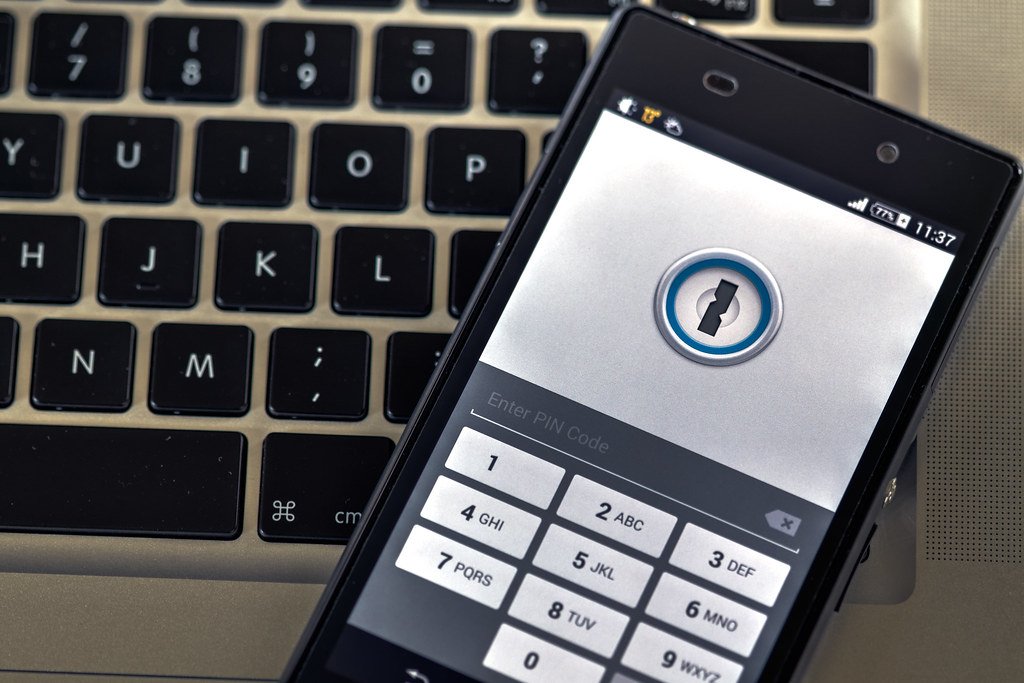
Your password is the only thing standing between a stranger and your email, your bank account, and your social media profiles. Two-factor authentication, usually called 2FA, adds a second lock to that door — so that even if someone steals your password, they still cannot get in. In this guide, you will learn exactly what two-factor authentication is, how it works, which methods are the strongest, and how to turn it on for the accounts that matter most.
What Is Two-Factor Authentication?
Two-factor authentication is a security step that requires two different pieces of evidence to prove you are really you before you can log in. The first factor is usually something you know — your password. The second factor is something you have — such as your phone — or something you are, like your fingerprint or face.
Think of it like a safety deposit box at a bank: the bank has one key, and you have the other. One key alone cannot open the box. With 2FA, your password alone cannot open your account — the attacker would also need the second factor, which lives on your phone or in your hand. That is why security experts call 2FA the single most effective thing an everyday person can do to protect their online accounts.
Why Passwords Alone Are Not Enough
It might feel like your password is a secret only you know. In reality, passwords get exposed all the time through no fault of yours. When a company you have an account with suffers a data breach, attackers can steal millions of usernames and passwords at once. Studies of these breaches show that most people reuse passwords across many sites — so a password stolen from a small forum can unlock someone’s email, and from there, their bank.
Attackers also guess passwords automatically, trying thousands of common combinations per minute, and they harvest passwords through phishing pages that look identical to real login screens. Even a long, complex password is vulnerable the moment it is typed into the wrong website. Two-factor authentication breaks this chain: the stolen or guessed password becomes useless on its own, because the attacker still has to clear the second hurdle — and that hurdle is tied to something only you physically possess.
How Two-Factor Authentication Works in Practice
Logging in with 2FA feels almost the same as logging in normally, with one extra step. Here is the typical flow:
- You enter your username and password as usual.
- The service asks for your second factor — for example, a six-digit code.
- You open an app on your phone, read the code it is showing, and type it in. (Or you approve a prompt, or tap your security key.)
- You are logged in. On your own devices you can usually choose “trust this device” so you do not repeat the extra step every time.
That is all there is to it. The extra step takes a few seconds, and most services only ask for it when you sign in from a new device or a new location. Once your own phone and computer are recognized, your daily routine barely changes — but an attacker on the other side of the world is stopped cold.
The Main Types of Second Factors
Not all second factors are equally strong. Here are the common methods, from most to least recommended:
Security keys (strongest)
A security key is a small physical device, about the size of a thumb drive, that you plug into your computer or tap against your phone. When you log in, you touch the key to prove you are there. Because the key verifies that you are on the real website — not a fake lookalike — this method is resistant to phishing. If you can get one, use it for your most important accounts, especially your email.
Authenticator apps
Apps like Google Authenticator, Microsoft Authenticator, and Authy generate a new six-digit code every 30 seconds for each account you set up. You type the current code during login. The codes are generated on your device and are not sent over the network, so nobody can intercept them. This is the best free option for most people, and it works even without a phone signal or internet connection.
Push notifications
Some services send a prompt to your phone asking “Was this you?” with Approve and Deny buttons. This is convenient and reasonably secure. One caution: never approve a login prompt you did not trigger yourself. Attackers sometimes spam these prompts hoping you will tap Approve just to make them stop. If you get a prompt you did not request, choose Deny and change your password — someone has your password and is trying to get in.
Text-message (SMS) codes
Getting a code by text message is the weakest common method, but it is still far better than no 2FA at all. Its weakness is that phone numbers can be hijacked: an attacker can trick your mobile carrier into moving your number to their SIM card, and then your texts — including login codes — go to them. Use SMS codes only when a service offers no better option, and consider asking your carrier to add extra protection to your account.
Which Accounts Should You Protect First?
You do not have to enable 2FA everywhere on day one. Prioritize the accounts that an attacker would find most valuable, because these are the keys to everything else:
- Your email accounts. This is number one. Your email is the master key: anyone who controls it can reset the passwords of almost every other account you own. Protect it first.
- Your bank and financial accounts. Banks often require 2FA or offer it as an option. Turn it on wherever it is available.
- Your phone and cloud accounts (Apple ID, Google account, Microsoft account). These hold your photos, backups, and the ability to remotely lock or wipe your devices.
- Social media and messaging accounts. These are prime targets for impersonation scams aimed at your friends and family.
- Work accounts and password managers. Your password manager holds every other password — it deserves the strongest protection you can give it.
Work through this list one account at a time. Look in each service’s security or account settings for “two-factor authentication,” “two-step verification,” or “login approvals” — the names vary, but they all mean the same thing.
Setting Up 2FA the Right Way
The setup takes a few minutes per account and usually goes like this: open the account’s security settings, choose two-factor authentication, and follow the steps to connect your chosen method (install an authenticator app, register a security key, or verify your phone number). During setup, the service will show you backup or recovery codes — a short list of one-time codes to use if you lose your phone. This part is important: save these codes somewhere safe, like printed on paper in a drawer or stored in your password manager. Without them, losing your phone could mean losing access to your account.
A few practical tips make life with 2FA much smoother. First, an authenticator app can hold codes for many accounts at once, so you do not need a separate app per service. Second, if the app offers cloud backup or syncing, consider turning it on so your codes survive a broken or lost phone. Third, when you get a new phone, set up the authenticator on the new device before you wipe the old one. And finally, keep your recovery codes updated whenever you change methods — an old code list from a method you no longer use will not help you.
Common Concerns and Myths
Many people avoid 2FA because of misunderstandings. Let us clear up the most common ones:
- “It will be annoying every time I log in.” In practice, services remember your trusted devices. You will mostly see the extra step when you sign in on a new phone or computer — a few seconds, a few times a year.
- “What if I lose my phone?” That is what recovery codes are for. Set them up at the start, store them safely, and a lost phone becomes an inconvenience instead of a disaster.
- “SMS codes are fine.” They are better than nothing, but authenticator apps and security keys are meaningfully stronger. Upgrade your most important accounts when you can.
- “I don’t have anything worth stealing.” Attackers do not need you to be wealthy. Your email alone lets them impersonate you to your contacts, reset your other accounts, and apply for things in your name. Everyone is a worthwhile target.
- “My password is really strong, so I’m fine.” A strong password protects against guessing, but not against phishing pages or company data breaches. 2FA protects against those.
Final Thoughts
Two-factor authentication is the closest thing the internet has to a free, easy security upgrade. It takes a few minutes to set up per account, adds only seconds to your logins, and blocks the most common ways attackers break into accounts. Start today with your email account — the single most important one — then work down the list. Future you, the one who never has to send an embarrassed “ignore my hacked account” message to friends and family, will be grateful.
